Ever felt like your computer is just… sluggish? Taking ages to boot up, or freezing programs? When these hiccups become the norm, your hard drive is often the culprit. But is it time for an upgrade or a complete replacement? Understanding the difference can save you time, money, and frustration. Let’s break it down.
Is Your Hard Drive Giving You Trouble? Key Warning Signs
Before diving into upgrading versus replacing, know the symptoms of a struggling hard drive. These often appear slowly, worsening over time.
Slow performance is a key indicator. If boot times are long, files open or save slowly, and everyday tasks crawl, your hard drive may be struggling.
Frequent freezing or crashing is another red flag; if your computer keeps crashing unexpectedly, or programs suddenly stop responding, it’s a big hint that something’s amiss with your storage. You might also hear strange noises from traditional HDDs; clicking, grinding, or buzzing often signals looming mechanical failure. Data corruption, where files become unreadable or disappear, is another serious symptom.
For Mac users, signs of a dying MacBook include extremely slow performance, apps freezing or quitting unexpectedly, and the dreaded flashing question mark folder at startup. Unaddressed, these can lead to frustrating data loss.
Upgrade Your Hard Drive: When a Boost Is All You Need
An upgrade is the smarter play when your current hard drive works, but isn’t fast or large enough for your needs.
Need for Speed? SSD is Your Friend.
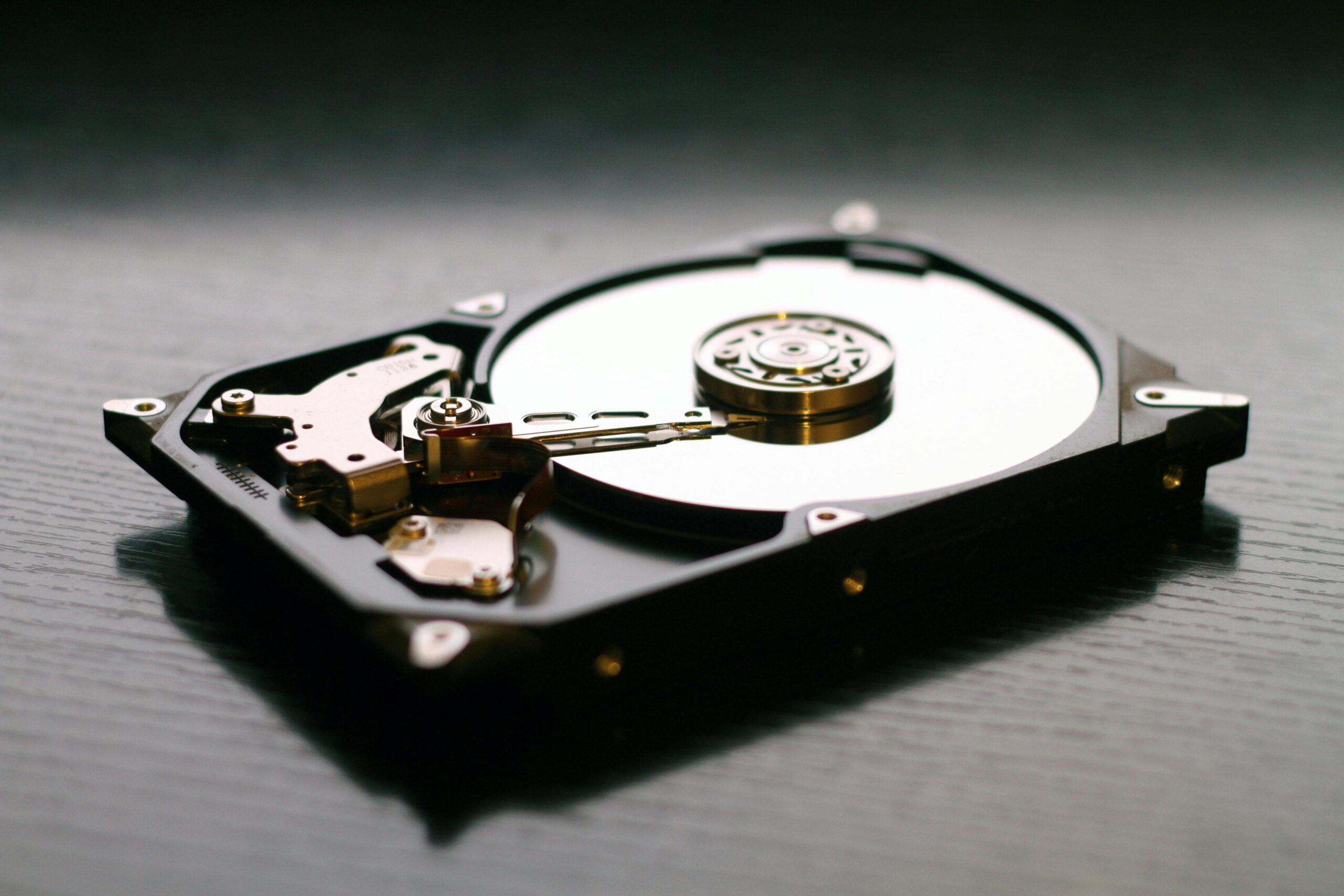
Many older computers come with traditional internal hard drives for PC (HDDs), which are slow due to spinning platters and read/write heads. If you’re still using an HDD as your main drive, upgrading to a Solid State Drive (SSD) is the best performance boost. SSDs use flash memory, meaning no moving parts and lightning-fast speeds. Boot times will plummet, applications launch instantly, and overall system responsiveness will soar.
Running Out of Space? Add More.
Another common reason to upgrade your hard drive is simply a lack of storage. Are you constantly deleting files to make room for new ones? Do you have an ever-growing collection of photos, videos, or games? If your current drive is near capacity, an upgrade to a larger drive (either an HDD for bulk storage or a larger SSD for speed and capacity) is a straightforward solution. Many users also add an external hard drive for computers to offload larger files, keeping the faster primary drive free for the OS and essential programs.
An upgrade improves existing functionality, making things faster, adding more space, or both. It’s a performance enhancement, not a fix for a broken component.
Replace Your Hard Drive: When It’s Time for a Fresh Start
Replacing your hard drive is a more drastic step, usually taken when your current drive is failing or has already failed. This isn’t about improving performance; it’s about restoring basic functionality.
When Failure Looms (or Hits)
Persistent crashing, critical errors, or ominous clicking noises mean your hard drive is likely failing. Ignoring these leads to data loss. At this point, attempting an “upgrade” isn’t feasible; you need a replacement. This involves swapping the old drive for a new one (ideally an SSD) and reinstalling your OS and files.
Data Recovery Considerations
When a hard drive fails unexpectedly, data recovery becomes the primary concern. While a specialised HDD repair service might retrieve data from a failing drive, severely damaged drives often require complex and costly hard drive repair and recovery processes. It’s why regular backups are so crucial! If you haven’t backed up, a professional might help, but success isn’t guaranteed.
Replacement also makes sense if your computer’s hard drive technology is obsolete. Moving to a modern SSD can breathe new life into an otherwise functional but slow machine.
DIY or Call a Professional?
If you’re comfortable tinkering with computers, upgrading a hard drive can be a DIY project. You’ll need tools, instructions (available online), and patience. Cloning your old drive to a new one makes the transition smoother, avoiding a full OS reinstallation. If you’re upgrading, remember to use hard drive maintenance software (like disk cleanup for HDDs, or ensuring TRIM is enabled for SSDs) to keep your drive optimised.
However, if you’re not confident or if you’re dealing with a failing drive and potential data loss, it’s always best to call experts. Professionals dealing with computer hard drive repair or replacements can ensure the job is done correctly, often with warranties, and have specialised tools for data recovery. If you’re in Sydney and facing these issues, contact Online Consulting in the Northern Beaches computer repairs for reliable assistance.
Deciding whether to upgrade your hard drive or replace it boils down to why you’re having trouble. If you’re craving more speed or space, an upgrade (especially to an SSD) is likely the answer. But if your drive is constantly crashing, making strange noises, or simply refusing to work, replacement is necessary to get your computer back on track. Either way, promptly addressing hard drive issues is crucial for your computer’s health and peace of mind. When in doubt, a professional can always help diagnose the problem and recommend the best path forward.